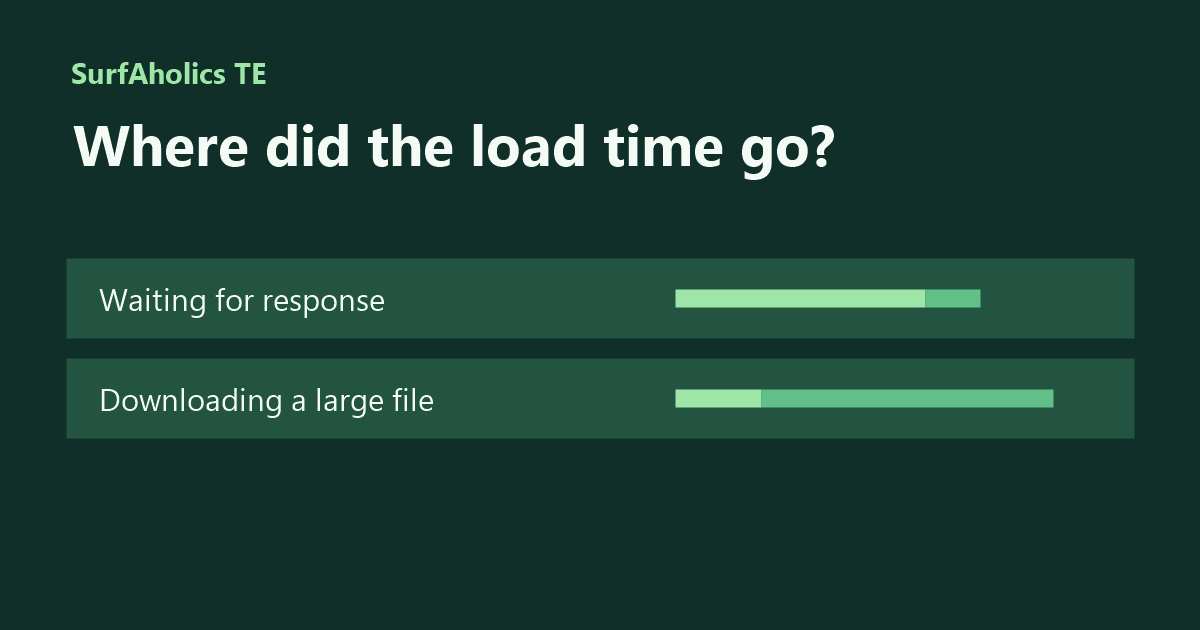
A visitor arriving from SurfAholics TE tells you the signup page takes too long to load. Before you resize images or ask your host for help, find which request took the time. Chrome’s Network panel shows the requests the browser makes and how long each part takes.
Record one slow visit
Open the exact advertising destination in a private window. Before reloading, open Chrome DevTools and select Network. Select Disable cache while DevTools is open. Choose a slower network preset such as Slow 4G if it is available, then reload once. Keep the same preset and cache setting for the second run so the timings are easier to compare. See the Chrome Network panel reference for the controls.
Check the request that matters
Find the first document request and one resource tied to the problem, such as the script that renders an empty form or the image visitors report missing. Select the row and open Timing. A long Waiting for server response phase means the browser spent much of the request waiting for the first byte. That interval includes network latency and can include server work. A long Content Download phase means receiving the response body took much of the time. Check the transferred size and the network preset alongside the timing.
A long bar is a reason to look at its phases. An optional image may still be loading after the form is usable. If the form itself is late, record when its required request starts and whether its status shows success or an error.
Make one change and capture the same evidence again
Imagine your document responds promptly, but a large hero image spends several seconds downloading under Slow 4G. If that image is the reported problem, try a smaller version and compare the same request and visitor experience. If the initial document repeatedly spends most of its time waiting for a response, record that result for the page or hosting owner. Include the request name, status, timing stage and test conditions. Remove tokens and personal data from anything you share.
Before assigning more traffic, run the same test after the change and complete the intended action through your normal test process. Keep the two observations together so you can tell whether the fix addressed the problem you started with.