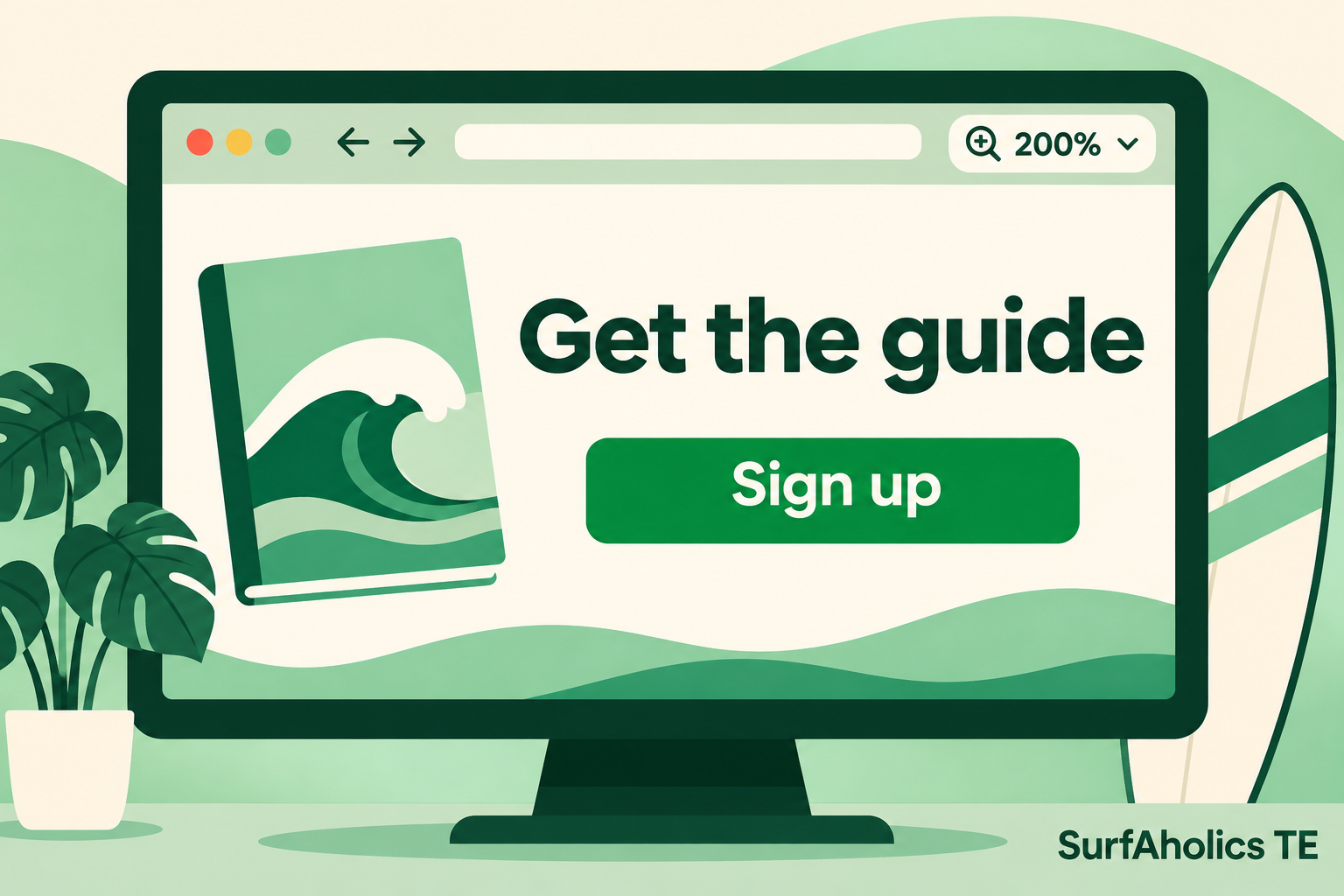
Before you assign credits on SurfAholics TE, open the exact landing page you plan to advertise and try it at 200% browser zoom. Can you still read the offer, find the next step, and finish the form? A short test can catch clipped text and hidden controls before visitors encounter them.
Start with the exact link visitors will get
Open the campaign URL in a desktop browser. If it redirects, check the page where you land. Start at 100% so you know what the offer and its main action look like. Then use your browser’s Zoom control to reach 200%. Keep the browser window the same size for the first pass so you can see what changes when the page enlarges.
Follow the offer from headline to confirmation
Read the heading, offer details, costs, and conditions. Text should wrap without hiding important words or making you scroll sideways to read each line. Open and close any navigation or pop-up that a visitor could encounter. Check that a banner or sticky toolbar leaves room to use the page.
Use Tab to move through the page. Can you see which control has focus, including the main action button? If there’s a form, check that its labels stay visible and that any error message identifies the field to fix. Use a test address you control if it’s appropriate to submit the form, then confirm you can read the success message or next step.
Fix a blocked action and repeat the test
Suppose you offer a free guide. At 100%, the email field and sign-up button fit side by side. At 200%, the offer text wraps, but the form stays the same width and its button runs past the right edge. Let the label, field, and button stack on narrower layouts. Then reopen the campaign URL and repeat the whole path at 200%, including an empty submission if the form supports one. Check that the error message and button both stay visible.
Run a separate mobile check
Desktop zoom enlarges a page inside the same browser window. A phone also brings a narrow screen, touch controls, and an on-screen keyboard that can cover a form. Test on a phone as well and repeat the task with the keyboard open. For separate checks, see how to test a landing page without images and test it with reduced motion.
Record the URL, browser, zoom level, and what you fixed. A successful zoom test tells you that the path you checked works under those conditions. Run it again after changing the offer, form, or template.