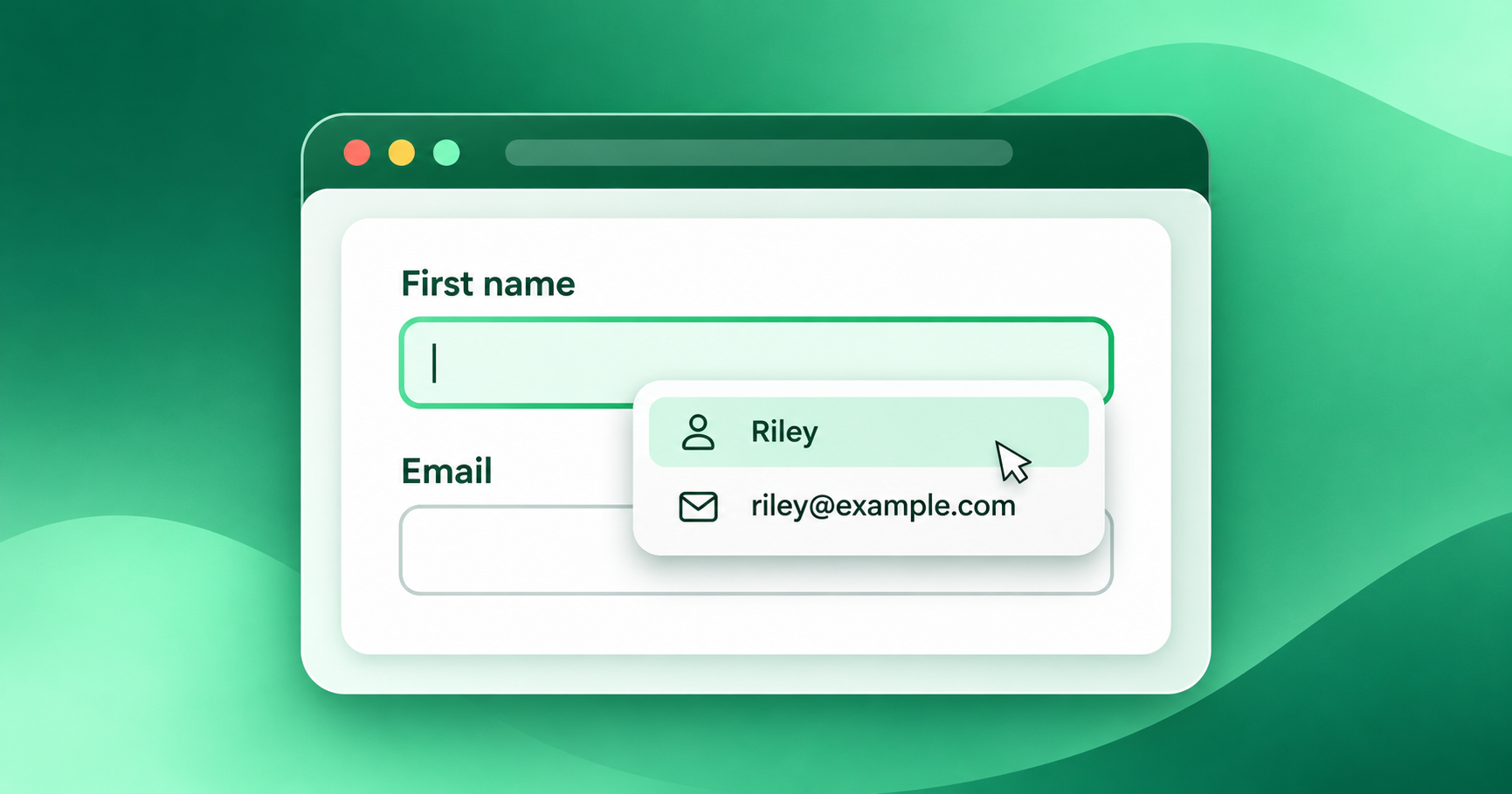
Before you send visitors from SurfAholics TE, test your signup form with saved browser details. A form can work when you type every field and still put saved information in the wrong place.
Start with a test browser profile. Save a fictitious name and a test email address you control. Open the public signup page, select the browser’s suggested contact details and check where each value lands. Pay particular attention to first name, last name and email. If your form only asks for a first name, check whether it receives the first name alone. Avoid real subscriber records during testing.
Now correct one field by hand. Move through the rest of the form and confirm the correction stays in place. If opening a suggestion or returning to the form overwrites the correction, record the browser, device and exact steps so you can reproduce it. Repeat with mobile autofill because phones can surface contact details differently.
If a field fills incorrectly, check that its visible label and input purpose agree. A first-name field can use the autocomplete token given-name, and an email field can use email. Work with your form builder to set those purposes where it supports them. Retest the public page after saving.
Try once more with autofill off. The form should still allow manual entry. If you run a test submission, use your test address and verify the confirmation reflects what you entered.