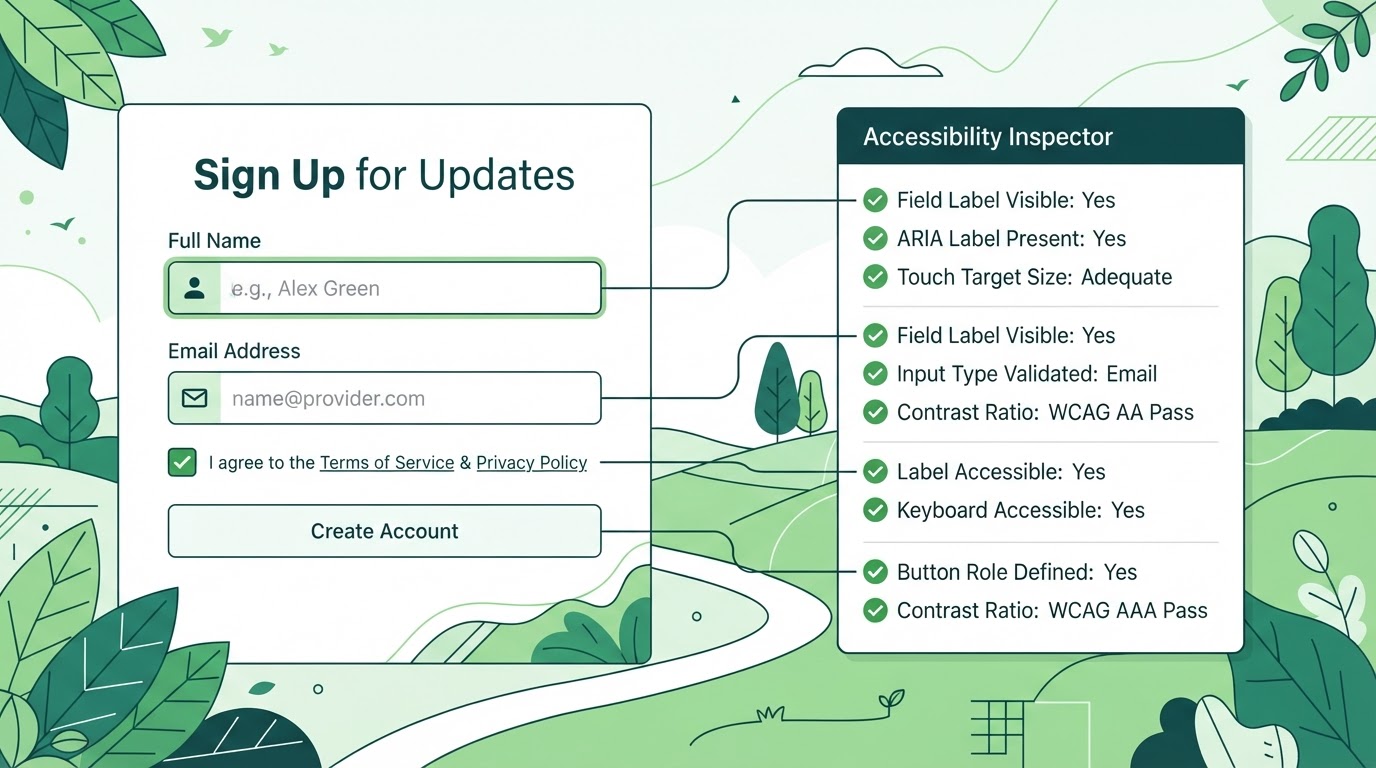
A signup form may look perfectly clear to someone viewing the screen but still be confusing to a visitor using a screen reader.
Before sending advertising visitors from SurfAholics TE, check whether every important form field can be identified without relying only on its visual appearance.
Understand the difference between visible text and an accessible name
A form field needs a name that assistive technology can identify. A visible label such as “Email address” is helpful, but it must also be properly associated with the field.
In HTML, this is commonly done using a label element connected to the input’s id. Other accessible naming techniques exist, but ordinary visible labels are usually the clearest starting point for a simple signup form.
Placeholder text is not a dependable replacement for a label. It may disappear when someone begins typing, and its behavior can vary across browsers and assistive technologies.
Inspect the name and email fields
Open the exact signup page you plan to advertise. Find the field where a visitor enters a name and the field where they enter an email address.
Use your browser’s accessibility inspection tools to examine each field’s computed accessible name.
A name field might announce “Your name, edit text.” An email field might announce “Email address, edit text.”
The exact spoken wording depends on the browser and screen reader. What matters is whether the visitor can identify the purpose of each field.
Check consent controls separately
If the form includes a checkbox for receiving email, its label should explain the actual choice being offered.
A checkbox announced only as “Checkbox, unchecked” gives too little context. The visitor should understand what they are agreeing to before selecting it.
Keep consent separate from unrelated terms and do not preselect an optional marketing choice merely to increase signups.
Test with a keyboard and screen reader
Press Tab to move through the form in its intended order. Confirm that each field receives visible focus and that its purpose remains understandable.
Then use a screen reader, when available, to hear the accessible name and current state of each control.
Automated accessibility checks can help identify missing labels, but they do not replace testing whether the form makes sense to an actual visitor.
Fix the underlying markup
If a field has no meaningful accessible name, correct the form’s label association or the supported accessible naming method in the form builder.
Do not assume that changing the font size, adding a tooltip or placing a heading above the form solves the problem.
After correcting the field, reload the public page and repeat the test.
Complete the signup journey
A properly labeled form still needs accurate instructions, useful error messages, a working submission process and a clear explanation of what happens afterward.
Test the entire journey with an authorized test address before assigning additional advertising credits.
Clear accessible names help visitors understand what information is requested. They are one practical part of making a signup page more usable, trustworthy and welcoming.